PM2Bar: Get `pm2 list` Visibility Without the Terminal
You switched to pm2. Your processes crash less. But now you have a new problem.
In my last post, I traced a Bad Gateway to a PID file that had been lying to me for days. The fix was pm2 — it would restart crashes automatically, log everything, and I’d never orphan a server on a port again.
What I didn’t expect: I checked pm2 list more after switching to pm2, not less.
Before pm2, I assumed everything was broken until proven otherwise. After pm2, I knew everything was handled — but I checked anyway. Terminal open. pm2 list. Three processes, all green. Close terminal. Twenty minutes later: repeat.
It wasn’t distrust. It was a visibility problem that pm2 solved at the server level but not at the human level. I needed a status bar, not a monitoring dashboard. Something I could glance at — not something I had to open.
The Requirements
- Must live in the macOS menu bar (always visible, zero friction to check)
- Must refresh automatically (~2s interval)
- Must show process name, status, CPU, and memory per daemon
- Must visually flag errors (red icon, immediately)
- Must be native AppKit — no Electron, no 300MB RAM for a status indicator
- Must survive reboots (launch at login)
The Architecture
1
2
3
4
5
6
7
8
9
PM2BarApp → AppDelegate → PM2MenuBarDelegate → NSStatusBar
                                    ↓
                              PM2Model
                                    ↓
                          `pm2 list --no-color`
                                    ↓
                           Parse │-delimited table
                                    ↓
                         NSAttributedString rows
The core is 355 lines of Swift in a single file (PM2MenuBarDelegate.swift). Two dependencies: AppKit and ServiceManagement. No SwiftUI.
PM2MenuBarDelegate owns the NSStatusItem. The menu bar icon shows a terminal icon + process count. When any process errors, the icon turns red and switches to a warning triangle. The dropdown menu renders each process as a named row with a status dot (green/red/orange/yellow) plus CPU and memory metrics. A relative timestamp shows “Updated Xs ago.”
LoginItemManager wraps SMAppService.mainApp (macOS 13+). Its register()/unregister() survive system reboots so PM2Bar comes back up alongside pm2’s own pm2 startup. On macOS 14+, the login item requires System Settings approval — the menu shows a yellow note when SMAppService.mainApp.status == .requiresApproval.
The Process( ) Lifecycle
95% of the code in this project is UI plumbing — NSMenu, NSAttributedString, NSStatusItem. The actual work happens in PM2Model.fetch(), which is 22 lines of Swift that spawn pm2 list --no-color and parse the output. Those 22 lines took the most debugging.
Problem 1: PATH is not what you think
When a macOS app launches (not from a terminal, but from the Dock, Spotlight, or a launchd login item), $PATH is /usr/bin:/bin:/usr/sbin:/sbin. No /usr/local/bin. No /opt/homebrew/bin. No ~/.asdf/shims/pm2.
So Process can’t just run pm2 list. The executable wouldn’t be found unless pm2 is installed to a system path, which it never is when installed via Homebrew or asdf.
The fix is a search loop — probe known pm2 locations before falling back:
1
2
3
4
5
6
7
let candidates = [
    "\(NSHomeDirectory())/.asdf/shims/pm2",
    "/usr/local/bin/pm2",
    "/opt/homebrew/bin/pm2",
    "/usr/bin/pm2",
]
pm2Path = candidates.first(where: { FileManager.default.isExecutableFile(atPath: $0) }) ?? "pm2"
And then execute it through a login shell anyway, because PATH also varies by how the user installed Node.js:
1
2
task.executableURL = URL(fileURLWithPath: "/bin/zsh")
task.arguments = ["-l", "-c", "\(pm2Path) list --no-color 2>&1"]
The -l flag makes zsh load the user’s .zprofile / .zshrc, which restores the expected PATH. Without it, even a valid pm2Path fails because pm2 itself might invoke Node.js through nvm/volta shims that only exist in the login shell’s PATH.
Problem 2: Timer fires on the main thread
Timer.scheduledTimer(withTimeInterval: 2, repeats: true) fires its callback on the main run loop. fetch() calls task.run() and task.waitUntilExit() — both synchronous, blocking calls. So every 2 seconds, the main thread blocks for ~50ms waiting for pm2 list to complete.
50ms every 2 seconds is not a problem for a menu bar app. The UI doesn’t stutter because nothing else is animating during that window. But if pm2 ever hung (stale lockfile, NFS stall, corrupted state file), the entire app would freeze. So the timer callback dispatches fetch() to a background queue:
1
2
3
4
5
6
DispatchQueue.global().async { [weak self] in
    self?.fetch()
    DispatchQueue.main.async {
        self?.isFetching = false
    }
}
This keeps the main thread responsive. parse() already dispatches its results to DispatchQueue.main.async, so UI updates arrive on the correct thread regardless of where fetch() runs.
Problem 3: Overlap guard
The timer fires every 2 seconds. If a fetch takes longer than 2 seconds — which shouldn’t happen but will, eventually, on the wrong day — a second Process starts before the first finishes. Two copies of pm2 list racing, both writing to their own pipes, both calling parse() with slightly different state snapshots. The later one wins only by timing.
An isFetching flag at the top of the timer callback prevents this:
1
2
guard let self = self, !self.isFetching else { return }
self.isFetching = true
The guard skips the fetch if one is already running. isFetching resets to false on the main thread after fetch() completes, ready for the next tick.
Problem 4: Pipe deadlock, avoided
Process communicates output through Pipe. Two Pipes (stdout, stderr) or one shared Pipe with merged streams. The code uses one pipe with 2>&1 — stdout and stderr merged — which means only one file descriptor needs draining.
The tricky part is ordering: readDataToEndOfFile() blocks until the write end of the pipe is closed. The write end is closed when the subprocess exits. So the sequence is:
1
2
3
try task.run()
task.waitUntilExit()         // process has exited → pipe write-end closed
let data = pipe.fileHandleForReading.readDataToEndOfFile()  // safe
If you reverse these — read before wait — and the process writes more than the OS pipe buffer (64KB on macOS), the process blocks trying to write because nobody is draining the read end. You get a deadlock: parent waits for process, process waits for parent to drain pipe, nobody moves.
The current code gets this right. But it’s the kind of bug that looks fine in testing and breaks at 3AM when pm2 suddenly has 20MB of status output to flush.
The result of those 22 lines
Despite all this, the subprocess approach works. pm2 list runs in ~50ms, returns cleanly, and the parsing code processes it before the next tick. The 2-second timer means you see state changes within one refresh cycle — fast enough to catch errors, slow enough to not spin the CPU.
The 20MB Answer
The app uses about 20MB of RAM. That matters because status bar apps accumulate — you have five of them, suddenly a gig of RAM is gone to things you glance at twice a day. PM2Bar spawns a subprocess every two seconds, but the subprocess reads an in-memory state file and returns in ~50ms. The overhead is negligible.
That said, a 2-second timer firing 24/7 adds up: ~43,200 subprocess launches per day, each holding a ~50ms window. Total CPU time sits around 36 minutes per day — roughly a persistent Chrome tab. The real power impact is lower because pm2 list is mostly I/O wait (reading pm2’s state socket), not CPU-bound.
The Part I Didn’t Expect
Parsing pm2 list output was the hardest part of this project. Not because the format is complex — it’s a box-drawing table with │ separators. The problem is column alignment shifts. When one process runs for 2 months and another runs for 2 hours, the uptime column widths differ, and the │ character lands on a different index.
My first parse approach was column-index-based: split lines, assume status is always at column 5, read neighbors by offset. This broke the first time a process ran long enough for its uptime string to push every other column right by 2 characters.
The fix: don’t assume column positions. Find the status keyword (online/errored/stopped/paused) by scanning each cell, then read known offsets relative to that anchor. status - 3 = PID, status - 2 = uptime, status + 1 = CPU, status + 2 = memory. This survives any column width change because the anchor moves with the data, not the position.
1
2
3
4
5
6
7
8
guard let statusIdx = rawCols.firstIndex(where: {
    ["online", "errored", "stopped", "paused"].contains($0.lowercased())
}) else { return nil }

let pidIdx = statusIdx - 3
let uptimeIdx = statusIdx - 2
let cpuIdx = statusIdx + 1
let memIdx = statusIdx + 2
Two hours of debugging a ?? in the CPU column taught me that pm2’s table isn’t a specification — it’s an implementation detail. Parsing it by position is fragile. Parsing it by keyword anchor is resilient.
The Result (Part 2)
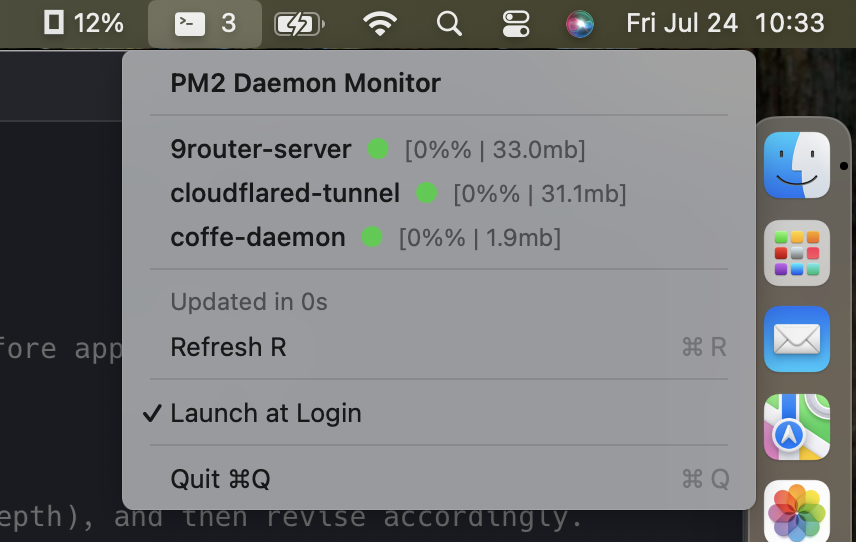
The menu bar shows a terminal icon and a number. Click it: a dropdown with every pm2 process, its health, its resource usage, and when it was last checked. Red icon = something needs attention. Green icon = everything fine. No terminal needed. No pm2 list. No context switch.
The code is at github.com/vianhanif/PM2Bar. MIT license. Requires macOS 13+ and pm2 accessible via a login shell. Build with swift build -c release.
Sources